YOLO Mode, Behind Glass: Running Claude Code in Docker on Windows 11
Full AI autonomy inside a container, zero risk to the host, and a fix for OneDrive’s thousand-files problem.

Table of Contents
- Introduction
- Design Goals
- Prerequisites
- Python Use Case
- Rust Use Case
- Configuration for Python
- Configuration for Rust
- Gotchas / Pitfalls
- Conclusion
- Post-scriptum
Introduction
I’m on Windows 11. Happy there, not moving. My projects live under OneDrive, VSCode is my editor, and for the past few days, while using WAT (Workflows, Agents and Tools) and SDD (Spec-Driven Development), my workflow has been circling around one goal: letting Claude write code while I focus on what actually matters.
And when I say “letting Claude write code”, I mean really letting it. There is a mode called YOLO (claude --dangerously-skip-permissions) where Claude can read, write, delete, and run commands without stopping to ask us every five seconds. No confirmation dialogs, no friction. It just works. And yeah, it is as powerful as it sounds. It is also as dangerous as it sounds. Run that on your actual machine and one confused LLM later, you could have missing files, a mangled git history, or an API key that went somewhere it should not have. So before I touched YOLO mode with a ten-foot pole, I needed a proper cage for it.
That is the whole point of this article.
My first instinct was WSL2. Linux inside Windows, great VSCode integration, sounds like exactly what I need. Except here is the thing: WSL2 mounts our Windows drives directly. C:\ shows up as /mnt/c/ inside the container. Everything Claude can touch in WSL2, it can touch on our host. That transparent access is precisely what I want to avoid. Maybe if performance becomes a real issue with Docker I will revisit WSL2, but for now I am leaving that door closed.
My second idea was the official devcontainer setup from the Claude docs page. Genuinely good setup. Would work perfectly… if I did not have OneDrive. My documents are synced. My projects live there. And a Docker Linux container does not know or care about OneDrive. So the .venv folder from a Python project, or the target/ directory from a Rust build, will merrily push tens of thousands of tiny files to the cloud in real time.
Dropbox is not the answer either. I already have a Microsoft 365 family subscription. Paying for another sync service on top of that would just be money going in circles.
What I actually want is a .onedriveignore file. You know, like .gitignore but for OneDrive. Tell it “watch this folder, but please, for the love of everything, ignore that subfolder.” That feature does not exist. I doubt it ever will (I sent feedback, never got an answer).
And yes, I know what you are about to say: “just put your projects outside OneDrive.” Tried it. Does not work for me in practice. There is always that one quick script, that one throwaway test project you bash out in twenty minutes, something you sketch on the corner of your desk and do not want to lose while you also do not feel like turning into a proper GitHub repo in a dedicated non-synced folder. So things end up scattered, you always forget which copy is current, and eventually the whole system falls apart. OneDrive is fine as long as you do not ask it to sync folders with thousands of tiny files being hammered constantly. And that is exactly what Python with UV and Rust both do.
For Rust I already worked out a solution, and I wrote about it in this article. For Python, I was stuck, until now.
At this point, it seems that the solution to both of my problems (enabling Claude’s YOLO mode and hiding certain folders in OneDrive) is Docker. One container for Python, one for Rust. Claude can run inside with full YOLO permissions. Docker volumes swallow the build artifacts that OneDrive cannot handle. The host stays pristine. And YOLO mode stays exactly where it belongs: safely contained, like a fireball in a glass cube.
Ready? Let’s dive in!
Design Goals
In practice, everything in this setup is driven by the following initials design goals:
- Do not change the way I create projects on Windows
- Do my best to run Claude in YOLO mode safely
- Create two containers: one for Rust, one for Python
- Install Claude and the GitHub CLI inside each of them
- I did some tests where I was reusing the Claude setup of my WIN 11 host. Finally I found more effective to have a Claude setup per container.
- Do NOT install
sudo - Create Docker volumes to hide the files we do not want OneDrive (aka Sauron) to sync

Prerequisites
- Windows 11
- VSCode
- Extension: Dev Containers
- Git + GitHub CLI
- GitHub CLI must be authenticated on the host before opening any container (
gh auth login)
- GitHub CLI must be authenticated on the host before opening any container (
- Docker Desktop for Windows installed, updated and running
winget install -e --id Docker.DockerDesktop
- For Python projects: UV installed on the host
winget install -e --id astral-sh.uv
- For Rust projects: Rust toolchain installed on the host
winget install -e --id Rustlang.Rustup
- An Anthropic account with a Pro or Max plan
- Optionally an API key (from console.anthropic.com)
Python Use Case
Before we get into the configuration details (and you know that the evil is in the details), let’s do a quick end-to-end run. The goal here is to prove the setup works. We will create a throwaway Python project, open it in the container, run some code, and let Claude commit and push it to GitHub. Configuration files and explanations come later. For now, just follow the steps.

1. Open a terminal on the host (Win+X, then I). Navigate to a folder watched by OneDrive, that is intentional, we are testing the real scenario.
2. Create a new Python project:
uv init py_delete_me_02
3. Copy the .devcontainer/ folder into the project root. We will cover what is inside that folder in the next sections. Trust the process for now.
4. Open the project in VSCode:
cd ./py_delete_me_02/
code .
5. VSCode will detect the .devcontainer/ folder and prompt us to reopen in a container. Click Reopen In Container (bottom right, blue). The image builds on the first run, grab a coffee.
6. Once inside the container, open a terminal (Ctrl+ù or Terminal > New Terminal) and verify the Claude home directory is in place:
ls /home/devuser/.claude/
We should see: CLAUDE.md backups downloads session-env settings.json
7. Switch back to a terminal on the host and check the Docker volumes that were created:
docker volume ls
DRIVER    VOLUME NAME
local     py_delete_me_02_claude_home
local     py_delete_me_02_uv
local     py_delete_me_02_venv
local     vscode

8. Back in the VSCode terminal (inside the container), run the project:
uv run python main.py
The first run downloads CPython. The py_delete_me_02_uv volume will now be around 94 MB. Nothing was written to our OneDrive folder.
9. Launch Claude and paste the token when prompted:
claude
10. Run /memory and check ~/.claude/CLAUDE.md. We should see our instructions loaded from the .devcontainer/ template. The py_delete_me_02_claude_home volume is now around 3.9 MB.
11. Close everything (/exit to quit Claude, then close VSCode). Reopen VSCode and click Reopen In Container again (bottom right, blue notification). This confirms that the volumes persist between sessions.
12. Launch Claude again and run these two prompts:
Please commit the projectPlease push the project on GitHub in a repo named "py_delete_me_02"
If both succeed, we have a fully working Python setup. We did’int but Claude can ran in YOLO mode (start it with claude --dangerously-skip-permissions) inside a container and our OneDrive folder stayed clean.
Rust Use Case
Before we get into the configuration details, let’s do a quick end-to-end run. The goal here is to prove the setup works. We will create a throwaway Rust project, open it in the container, build it, and let Claude commit and push it to GitHub. Configuration files and explanations come later. For now, just follow the steps.
1. Open a terminal on the host (Win+X, then I). Navigate to a folder watched by OneDrive. That is intentional, we are testing the real scenario.
2. Create a new Rust project. Either way works:
cargo new rust_delete_me_02
Or, if you use the New-RustProject.ps1 script described at the end of this article:
New-RustProject.ps1 rust_delete_me_02
3. If a .cargo/ folder exists in the project root (the New-RustProject.ps1 script creates one), rename it before going further. That config redirects target/ outside OneDrive on the host, but it would conflict with the container’s own Cargo configuration:
Rename-Item .cargo .cargo.bak
4. Copy the .devcontainer/ folder into the project root. We will cover what is inside that folder in the next sections. Trust the process for now.
5. Open the project in VSCode:
cd .\rust_delete_me_02\
code .
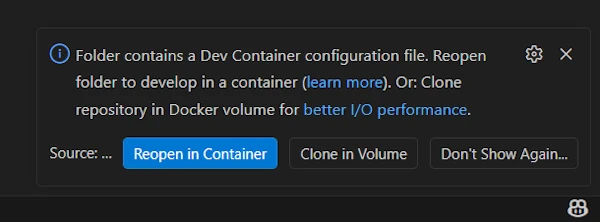
6. VSCode will detect the .devcontainer/ folder and prompt us to reopen in a container. Click Reopen In Container (bottom right, in blue). The image builds on the first run, you can grab a green tea.
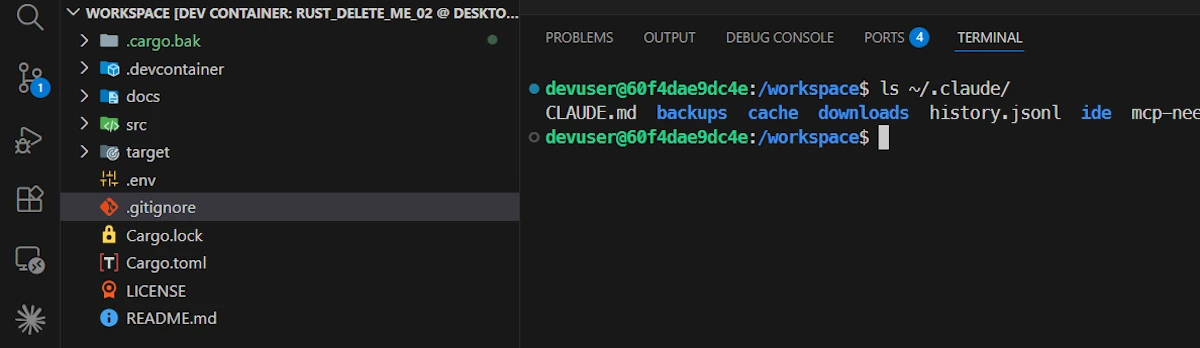
7. Once inside the container, open a terminal (Ctrl+ù or Terminal > New Terminal) and verify the Claude home directory is in place:
ls /home/devuser/.claude/
We should see: CLAUDE.md backups downloads session-env settings.json...
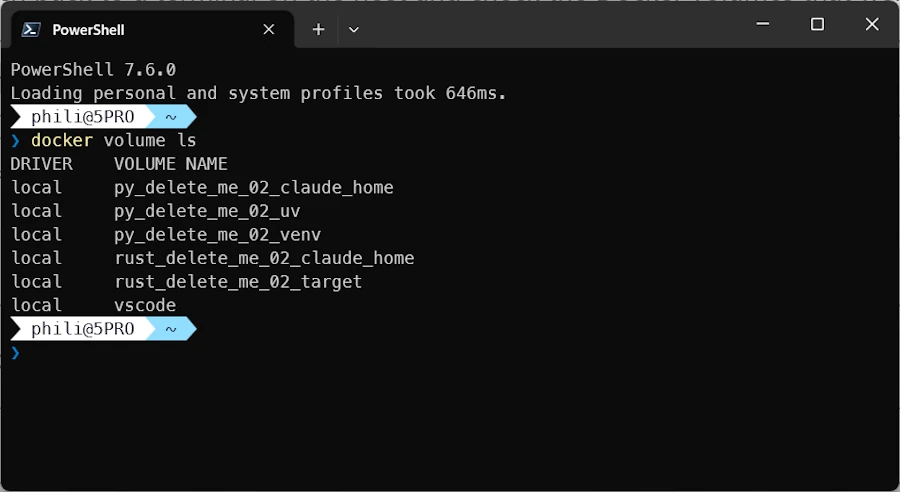
8. Switch back to a terminal on the host and check the Docker volumes that were created:
docker volume ls
DRIVER    VOLUME NAME
local     rust_delete_me_02_claude_home
local     rust_delete_me_02_target
local     vscode
9. Back in the VSCode terminal (inside the container), build and run the project:
cargo run
The rust_delete_me_02_target volume will now be around 7.7 MB. Nothing significant was written to our OneDrive folder.
Note: You will notice a small
./targetfolder appears in the workspace. This is NOT an expected behavior. Cargo writes a few metadata files there (CACHEDIR.TAG,.rustc_info.json, some empty directories) even whentarget-diris redirected. The actual build artifacts are in the Docker volume. The leftover folder is tiny and harmless. I created an issue but it seems the problem comes from the extension rust-analyzer which create the sub-directory and files as soon as possible.
10. Launch Claude and paste the token when prompted:
claude
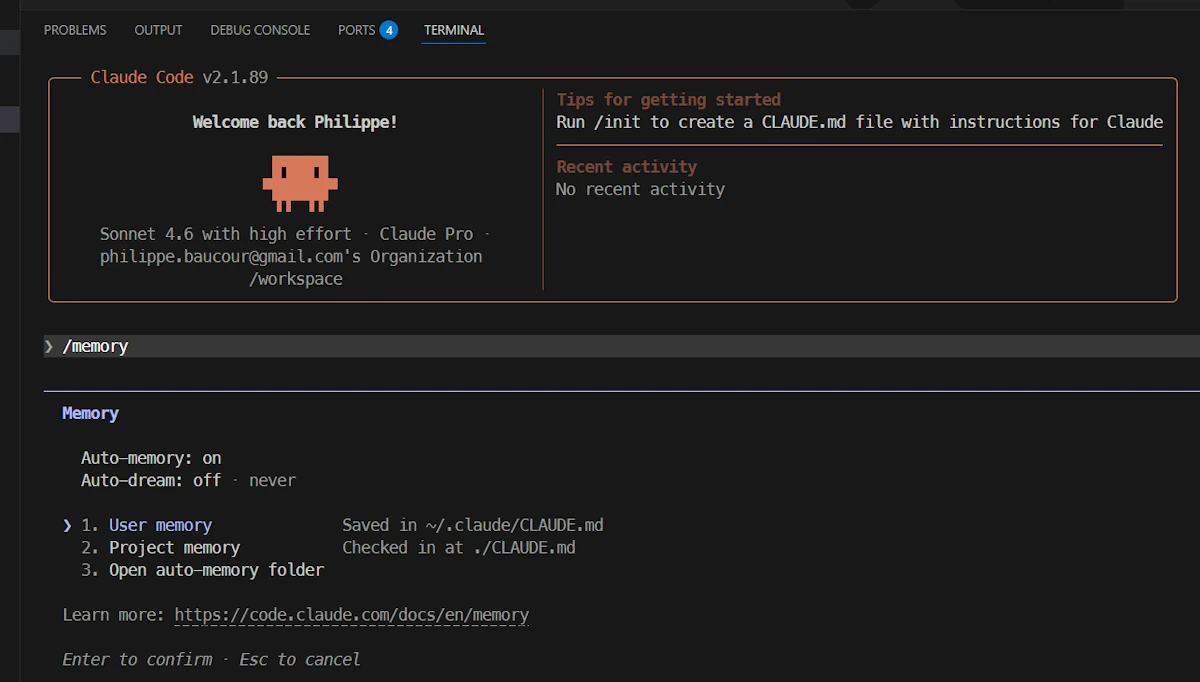
11. Run /memory and check ~/.claude/CLAUDE.md. We should see our instructions copied from the .devcontainer/ template. The rust_delete_me_02_claude_home volume is now around 3.9 MB.
12. Close everything (/exit to quit Claude, then close VSCode). Reopen VSCode and click Reopen In Container again. This confirms that the volumes persist between sessions.
13. Launch Claude again and run these two prompts:
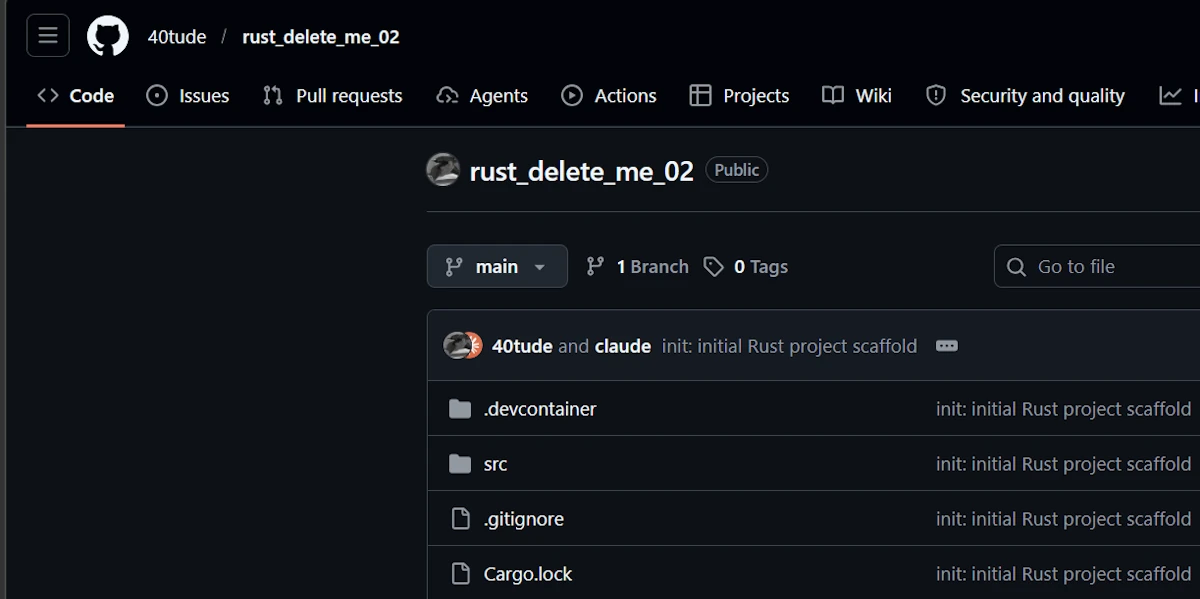
Please commit the projectPlease push the project on GitHub in a repo named “rust_delete_me_02”
If both succeed, we have a fully working Rust setup. Claude can run in YOLO mode, inside a container, and our OneDrive folder stayed clean.
Configuration for Python
This section contains every file that goes into the .devcontainer/ folder. The idea is to keep a template_devcontainer/ folder somewhere on your hard disk and copy its .devcontainer/ subfolder into each new project which is exactly what we did in the Python use case above.
The .devcontainer/ folder contains 4 files:
CLAUDE.md
devcontainer.json
Dockerfile
settings.json
Dockerfile
sudois NOT installed. This is intentional. Claude runs as a non-root user with no privilege escalation path.- Python is NOT installed at the system level, UV manages Python versions on demand.
- A non-root
devuseris created. All user-level tools (Claude, UV) are installed under that account. - The project lives in
/workspace. - The Dockerfile switches from
roottodevuserpartway through: system packages first as root, then user tools as devuser. Order matters. session-envis pre-created by the Dockerfile so that when the Docker volume mounts/home/devuser/.claude, that subdirectory is already owned bydevuser. Without this, Docker would create it as root on first mount and Claude would fail to write there.UV_PROJECT_ENVIRONMENTredirects the virtual environment outside/workspaceso it lands in the Docker volume instead of the OneDrive-watched project folder.
FROM debian:bookworm-slim

RUN apt-get update && apt-get install -y \
    git curl ca-certificates gh \
    && rm -rf /var/lib/apt/lists/*

RUN useradd -m -s /bin/bash devuser \
    && mkdir -p /home/devuser/python_venv \
    && chown devuser:devuser /home/devuser/python_venv

WORKDIR /workspace
RUN chown devuser:devuser /workspace

USER devuser

ENV PATH="/home/devuser/.local/bin:$PATH"

RUN curl -fsSL https://claude.ai/install.sh | bash

RUN mkdir -p /home/devuser/.local/share/uv

RUN curl -LsSf https://astral.sh/uv/install.sh | sh

# Pre-create session-env so Docker volume initializes with devuser ownership
RUN mkdir -p /home/devuser/.claude/session-env

# Redirect .venv outside of /workspace to avoid OneDrive sync
ENV UV_PROJECT_ENVIRONMENT="/home/devuser/python_venv"
devcontainer.json
${localWorkspaceFolderBasename}makes this file project-agnostic.- 3 Docker volumes are created to persist the Claude home directory, the virtual environment, and the UV cache.
- The GitHub CLI config is bind-mounted from the host, so the authentication you did with
gh auth loginon Windows carries through. postCreateCommandcopiesCLAUDE.mdandsettings.jsonfrom.devcontainer/into the Claude home volume on first container creation. We can edit them inside the container afterward if needed.
{
  "name": "${localWorkspaceFolderBasename}",
  "build": {
    "dockerfile": "Dockerfile"
  },
  "remoteUser": "devuser",
  "mounts": [
    "source=${localEnv:USERPROFILE}\\AppData\\Roaming\\GitHub CLI,target=/home/devuser/.config/gh,type=bind",
    "source=${localWorkspaceFolderBasename}_claude_home,target=/home/devuser/.claude,type=volume",
    "source=${localWorkspaceFolderBasename}_venv,target=/home/devuser/python_venv,type=volume",
    "source=${localWorkspaceFolderBasename}_uv,target=/home/devuser/.local/share/uv,type=volume"
  ],
  "postCreateCommand": "cp /workspace/.devcontainer/CLAUDE.md /home/devuser/.claude/CLAUDE.md && cp /workspace/.devcontainer/settings.json /home/devuser/.claude/settings.json",
  "workspaceMount": "source=${localWorkspaceFolder},target=/workspace,type=bind",
  "workspaceFolder": "/workspace"
}
CLAUDE.md
This is the CLAUDE.md that gets injected into the container. Paste your own content and adapt it to your Python conventions if needed.
## CRITICAL RULES - NEVER SKIP
- LANGUAGE: US English for ALL artifacts (code, comments, commits, docs, errors, UI strings). French OK only in live chat. When uncertain, ASK.
- PLATFORM: Debian Linux (Docker/WSL2 container). Use bash/shell syntax for all CLI examples and scripts.
- CONCISION: Plans, commits, docs, be extremely concise. Sacrifice grammar for brevity.
- No en-dash, no em-dash, no emojis in artifacts.
- BEFORE creating docs (.md, README.md, etc.), check both user and project CLAUDE.md for requirements.

## Platform Details
- Never write temp files in project root. Create `temp/` first
- Python: ALWAYS `uv run python main.py` (NEVER invoke `python` or `python3` directly)

## Git Commits
- Format: `<action>: <what changed>` (e.g., "update: edition 2024 + crate versions")
- Max 50 chars subject, US English, omit articles

## Documentation
- Clear headings, code blocks with language tags, concise explanations
- Check project `CLAUDE.md` for project-specific requirements
settings.json
skipDangerousModePermissionPrompt suppresses the “are you sure?” prompt that appears when launching Claude with --dangerously-skip-permissions. Setting it to false (or removing it) brings that confirmation dialog back on next launch.
{
  "env": {
    "CLAUDE_CODE_EXPERIMENTAL_AGENT_TEAMS": "1"
  },
  "enabledPlugins": {
    "skill-creator@claude-plugins-official": true
  },
  "effortLevel": "high",
  "skipDangerousModePermissionPrompt": true
}
Configuration for Rust
This section contains every file that goes into the .devcontainer/ folder for Rust projects. Keep a template_devcontainer/ folder somewhere on your hard disk and copy its .devcontainer/ subfolder into each new project which is exactly what we did in the Rust use case above.
The .devcontainer/ folder contains 4 files:
CLAUDE.md
devcontainer.json
Dockerfile
settings.json
Dockerfile
sudois NOT installed. This is intentional. Claude runs as a non-root user with no privilege escalation path.build-essentialis installed at the system level, it provides the C linker and standard libraries that Rust needs to compile.- A non-root
devuseris created. All user-level tools (Claude, Rust toolchain) are installed under that account. - The project lives in
/workspace. - The Dockerfile switches from
roottodevuserpartway through: system packages first as root, then user tools as devuser. Order matters. ~/.cargo/config.tomlis written inside the container to redirecttarget/to/home/devuser/rust_target, which is the Docker volume. This is what keeps build artifacts out of the OneDrive-watched project folder.
FROM debian:bookworm-slim

RUN apt-get update && apt-get install -y \
    git curl build-essential ca-certificates gh \
    && rm -rf /var/lib/apt/lists/*

RUN useradd -m -s /bin/bash devuser \
    && mkdir -p /home/devuser/rust_target \
    && chown devuser:devuser /home/devuser/rust_target

WORKDIR /workspace
RUN chown devuser:devuser /workspace

USER devuser

ENV PATH="/home/devuser/.local/bin:$PATH"

RUN curl -fsSL https://claude.ai/install.sh | bash

RUN curl --proto '=https' --tlsv1.2 -sSf https://sh.rustup.rs | sh -s -- -y
ENV PATH="/home/devuser/.cargo/bin:$PATH"

# Redirect target/ outside of /workspace to avoid OneDrive sync
RUN mkdir -p /home/devuser/.cargo \
    && printf '[build]\ntarget-dir = "/home/devuser/rust_target"' > /home/devuser/.cargo/config.toml
devcontainer.json
${localWorkspaceFolderBasename}makes this file project-agnostic.- 2 Docker volumes are created: one for the Claude home directory, one for the Rust
target/directory. No virtual environment to manage here. - The GitHub CLI config is bind-mounted from the host, so the authentication you did with
gh auth loginon Windows carries through. postCreateCommandcopiesCLAUDE.mdandsettings.jsonfrom.devcontainer/into the Claude home volume on first container creation. We can edit them inside the container afterward if needed.
{
  "name": "${localWorkspaceFolderBasename}",
  "build": {
    "dockerfile": "Dockerfile"
  },
  "remoteUser": "devuser",
  "mounts": [
    "source=${localEnv:USERPROFILE}\\AppData\\Roaming\\GitHub CLI,target=/home/devuser/.config/gh,type=bind",
    "source=${localWorkspaceFolderBasename}_claude_home,target=/home/devuser/.claude,type=volume",
    "source=${localWorkspaceFolderBasename}_target,target=/home/devuser/rust_target,type=volume"
  ],
  "postCreateCommand": "cp /workspace/.devcontainer/CLAUDE.md /home/devuser/.claude/CLAUDE.md && cp /workspace/.devcontainer/settings.json /home/devuser/.claude/settings.json",
  "workspaceMount": "source=${localWorkspaceFolder},target=/workspace,type=bind",
  "workspaceFolder": "/workspace"
}
CLAUDE.md
This is the CLAUDE.md that gets injected into the container. Paste your own content and adapt it to your Rust conventions if needed.
## CRITICAL RULES - NEVER SKIP
- LANGUAGE: US English for ALL artifacts (code, comments, commits, docs, errors, UI strings). French OK only in live chat. When uncertain, ASK.
- PLATFORM: Debian Linux (Docker/WSL2 container). Use bash/shell syntax for all CLI examples and scripts.
- CONCISION: Plans, commits, docs, be extremely concise. Sacrifice grammar for brevity.
- No en-dash, no em-dash, no emojis in artifacts.
- BEFORE creating docs (.md, README, etc.), check both user and project `CLAUDE.md` for requirements.

## Platform Details
- Never write temp files in project root. Create `temp/` first

## Git Commits
- Format: `<action>: <what changed>` (e.g., "update: edition 2024 + crate versions")
- Max 50 chars subject, US English, omit articles

## Documentation
- Clear headings, code blocks with language tags, concise explanations
- Check project `CLAUDE.md` for project-specific requirements
settings.json
Same as the Python setup, with one addition: the rust-analyzer-lsp plugin is enabled so Claude can use the language server for smarter Rust assistance. skipDangerousModePermissionPrompt suppresses the confirmation dialog when launching in YOLO mode.
{
  "env": {
    "CLAUDE_CODE_EXPERIMENTAL_AGENT_TEAMS": "1"
  },
  "enabledPlugins": {
    "rust-analyzer-lsp@claude-plugins-official": true,
    "skill-creator@claude-plugins-official": true
  },
  "effortLevel": "high",
  "skipDangerousModePermissionPrompt": true
}
Gotchas / Pitfalls
This setup is recent and I have not run it for months yet. That said, here are the rough edges I have already hit or that are worth knowing about upfront.
1. Bind mount performance
The project folder (/workspace) is a bind mount from Windows into the Linux container. This is slower than a native Linux filesystem, especially for operations that touch many small files. In practice, editing source files and having Claude read or write code is fine. The heavier operations (compilation, package resolution) are handled by Docker volumes (rust_target, python_venv, uv), which run on native Linux FS and are fast.
The real first-time cost is the image build. The first Reopen In Container takes a few minutes (Rust toolchain download in particular). After that it is cached and subsequent starts are fast.
2. What lives where
It is easy to lose track of what is where. Quick reference:
/workspace: our project source, bind-mounted from Windows. Visible in Windows Explorer./home/devuser/rust_targetor/home/devuser/python_venv: Docker volumes. NOT visible from Windows Explorer. Usedocker volume inspect <name>to find the actual path on disk./home/devuser/.claude: Docker volume. Claude’s memory, settings, and session data persist here between container restarts.
If you delete a Docker volume by mistake, the container starts fresh: Claude will ask for a token again and your CLAUDE.md gets recopied from .devcontainer/.
3. Permissions
Getting file ownership right between root and devuser across Docker volumes was the trickiest part of writing the Dockerfiles. The session-env pre-creation trick (visible in the Python Dockerfile) exists precisely to avoid a case where Docker initializes a volume directory as root, leaving Claude unable to write there.
The safeguard is simple: do NOT install sudo. If something breaks due to a permissions issue, the right fix is to correct the Dockerfile and rebuild (not to give devuser a way to escalate).
To rebuild: Ctrl+Shift+P then Dev Containers: Rebuild and Reopen in Container. Since each container is project-specific, rebuilding one does not affect the others.
4. Missing tools
Claude only sees what is installed in the container. If it tries to use a tool that is not there (jq, make, some system utility) it will fail, sometimes silently. The fix is straightforward: add the package to the apt-get install line in the Dockerfile and rebuild. Because each container is per-project, you can be surgical about what goes in each one.
5. Network is not restricted
This setup isolates Claude from your host filesystem, but not from the network. Claude inside the container can make HTTP requests, clone repositories, download packages, anything that requires internet access. For most development workflows that is exactly what we want. But if you are working with sensitive code or data and want to go further, you would need to add Docker network restrictions on top of this setup. That is outside the scope of this article.
Conclusion
So, does it work? Yes. Claude can run in YOLO mode inside a container, commits code, pushes to GitHub, and never touches anything it should not. OneDrive does not see the build artifacts. The Claude home directory persists between sessions. The setup is the same four files dropped into any new project: copy, open, done.
Is it perfect? Not quite. The small ./target folder that Cargo creates in the workspace is a known annoyance. It is harmless and tiny, but it is there. I opened an issue about it. For now, we live with it.
I also never tested WSL2. Maybe I will someday, if the Docker image build times start to feel too long. But the transparent host access still worries me enough that I am not in a hurry.
The one thing the setup does not do for us is copy the .devcontainer/ folder automatically into new projects. For the moment we have to do that manually. Later I will certainly automate it: add it to New-RustProject.ps1, write a small wrapper for uv init.
One last thing: do not forget to delete the py_delete_me_02 and rust_delete_me_02 repositories you created on GitHub during the walkthrough.
Post-scriptum
This is the script New-RustProject.ps1 I use to create my Rust project
# How to:
# Copy the script in a folder then add the latter to the PATH
#   $rustDir = "C:\Users\phili\OneDrive\Documents\Programmation\rust"
#   $currentPath = [Environment]::GetEnvironmentVariable("Path", "User")
#   [Environment]::SetEnvironmentVariable("Path", "$currentPath;$rustDir", "User")

# Notes
# .\New-RustProject.ps1 my_prj 011_my_prj
# .\New-RustProject.ps1 -PRJ_NAME my_project -Author "John Doe" -LicenseType Apache -GitInit
# Remove-Item -Path "011_my_prj" -Recurse -Force

param (
    [Parameter(Mandatory = $true, HelpMessage = "Project name (snake_case)")]
    [string]$PRJ_NAME,

    [Parameter(Mandatory = $false, HelpMessage = "Directory name (if different from project name)")]
    [string]$DIR_NAME,

    [Parameter(Mandatory = $false, HelpMessage = "Author name for LICENSE")]
    [string]$Author = "40tude",

    [Parameter(Mandatory = $false, HelpMessage = "License type: MIT, Apache, or None")]
    [ValidateSet("MIT", "Apache", "None")]
    [string]$LicenseType = "MIT",

    [Parameter(Mandatory = $false, HelpMessage = "Initialize git repository")]
    [switch]$GitInit
)

# Stop execution on any error
$ErrorActionPreference = "Stop"

# ============================================================================
# VALIDATION
# ============================================================================

Write-Host "Validating inputs..." -ForegroundColor Cyan

# Validate PRJ_NAME follows Rust naming conventions (snake_case)
if ($PRJ_NAME -notmatch '^[a-z][a-z0-9_]*$') {
    throw "Invalid project name '$PRJ_NAME'. Rust project names must be snake_case (lowercase letters, numbers, underscores only, must start with letter)."
}

# Check if cargo is installed
Write-Host "Checking cargo installation..." -ForegroundColor Cyan
try {
    $null = Get-Command cargo -ErrorAction Stop
}
catch {
    throw "Cargo not found. Please install Rust from https://rustup.rs/"
}

# ============================================================================
# HELPER FUNCTIONS
# ============================================================================

function New-FileIfNotExists {
    param (
        [string]$Path,
        [string]$Content = ""
    )

    if (-not (Test-Path $Path)) {
        if ($Content) {
            Set-Content -Path $Path -Value $Content -Encoding UTF8
        }
        else {
            New-Item -ItemType File -Path $Path | Out-Null
        }
        Write-Host "  Created: $Path" -ForegroundColor Green
    }
    else {
        Write-Host "  Exists: $Path" -ForegroundColor Yellow
    }
}

function New-DirectoryIfNotExists {
    param ([string]$Path)

    if (-not (Test-Path $Path)) {
        New-Item -ItemType Directory -Path $Path | Out-Null
        Write-Host "  Created: $Path" -ForegroundColor Green
    }
    else {
        Write-Host "  Exists: $Path" -ForegroundColor Yellow
    }
}

# ============================================================================
# PROJECT CREATION
# ============================================================================

$ProjectDir = if ($DIR_NAME) { $DIR_NAME } else { $PRJ_NAME }

Write-Host "`nCreating Rust project '$PRJ_NAME'..." -ForegroundColor Cyan

# Create Rust project
if ($DIR_NAME) {
    cargo new $ProjectDir --name $PRJ_NAME
}
else {
    cargo new $PRJ_NAME
}

# Verify project directory exists
if (-not (Test-Path $ProjectDir)) {
    throw "Project directory '$ProjectDir' was not created."
}

Push-Location $ProjectDir
Write-Host "Project created successfully`n" -ForegroundColor Green

# ============================================================================
# CARGO CONFIG (redirect target/ outside OneDrive)
# ============================================================================

Write-Host "Creating Cargo config..." -ForegroundColor Cyan

# Get the full path of the project directory
$FullProjectPath = (Get-Location).Path

# Build the OneDrive base path dynamically
$OneDriveBase = Join-Path $env:USERPROFILE "OneDrive"

# Check if the project is inside OneDrive
if ($FullProjectPath.StartsWith($OneDriveBase, [System.StringComparison]::OrdinalIgnoreCase)) {
    # Extract the relative path after OneDrive\
    $RelativePath = $FullProjectPath.Substring($OneDriveBase.Length).TrimStart('\')

    # Build the target-dir path with forward slashes for TOML compatibility
    $RustBuildsBase = "$env:USERPROFILE/rust_builds" -replace '\\', '/'
    $RelativePathForward = $RelativePath -replace '\\', '/'
    $TargetDir = "$RustBuildsBase/$RelativePathForward"

    # Create .cargo directory and config.toml
    New-DirectoryIfNotExists -Path ".cargo"

    $CargoConfigContent = @"
[build]
# Use native CPU optimizations for all builds
# rustc --print cfg -C target-cpu=native | Select-String "target_feature"
# Get-CimInstance -ClassName Win32_Processor | Select-Object Name, Caption, NumberOfCores, NumberOfLogicalProcessors
rustflags = ["-C", "target-cpu=native"]

# Avoid any issue with OneDrive
target-dir = "$TargetDir"
"@

    New-FileIfNotExists -Path ".cargo\config.toml" -Content $CargoConfigContent
    Write-Host "  Target directory redirected to: $TargetDir" -ForegroundColor Green
}
else {
    Write-Host "  Project is not in OneDrive, skipping target redirection" -ForegroundColor Yellow
}

# ============================================================================
# DIRECTORY STRUCTURE
# ============================================================================

Write-Host "`nCreating directory structure..." -ForegroundColor Cyan
New-DirectoryIfNotExists -Path "docs"

# ============================================================================
# DOCUMENTATION FILES
# ============================================================================

Write-Host "`nCreating documentation files..." -ForegroundColor Cyan

# README.md template
$ReadmeContent = @"
# $PRJ_NAME

> **Warning:** The ``.cargo/`` folder contains Windows-specific configuration (custom ``target-dir`` for OneDrive, CPU flags). Delete or rename before building:
> ``````bash
> mv .cargo .cargo.bak
> ``````
> More information on this [page](https://www.40tude.fr/docs/06_programmation/rust/005_my_rust_setup_win11/my_rust_setup_win11.html#onedrive).


## Description

[Add project description here]

## Installation

``````bash
cargo build --release
``````

## Usage

``````bash
cargo run
``````

## Testing

``````bash
cargo test
``````

## License

$LicenseType License - see [LICENSE](LICENSE) for details


## Contributing
This project is developed for personal and educational purposes. Feel free to explore and use it to enhance your own learning.

Given the nature of the project, external contributions are not actively sought nor encouraged. However, constructive feedback aimed at improving the project (in terms of speed, accuracy, comprehensiveness, etc.) is welcome. Please note that this project is being created as a hobby and is unlikely to be maintained once my initial goal has been achieved.
"@

New-FileIfNotExists -Path "README.md" -Content $ReadmeContent

# docs/notes.md
$NotesContent = @"
# Development Notes

## TODO

- [ ] Initial setup
- [ ] First implementation

## Ideas

[Add your ideas here]
"@

New-FileIfNotExists -Path "docs\notes.md" -Content $NotesContent

# ============================================================================
# LICENSE
# ============================================================================

Write-Host "`nCreating LICENSE..." -ForegroundColor Cyan

if ($LicenseType -eq "MIT") {
    $LicenseContent = @"
MIT License

Copyright (c) 2025 $Author

Permission is hereby granted, free of charge, to any person obtaining a copy
of this software and associated documentation files (the "Software"), to deal
in the Software without restriction, including without limitation the rights
to use, copy, modify, merge, publish, distribute, sublicense, and/or sell
copies of the Software, and to permit persons to whom the Software is
furnished to do so, subject to the following conditions:

The above copyright notice and this permission notice shall be included in all
copies or substantial portions of the Software.

THE SOFTWARE IS PROVIDED "AS IS", WITHOUT WARRANTY OF ANY KIND, EXPRESS OR
IMPLIED, INCLUDING BUT NOT LIMITED TO THE WARRANTIES OF MERCHANTABILITY,
FITNESS FOR A PARTICULAR PURPOSE AND NONINFRINGEMENT. IN NO EVENT SHALL THE
AUTHORS OR COPYRIGHT HOLDERS BE LIABLE FOR ANY CLAIM, DAMAGES OR OTHER
LIABILITY, WHETHER IN AN ACTION OF CONTRACT, TORT OR OTHERWISE, ARISING FROM,
OUT OF OR IN CONNECTION WITH THE SOFTWARE OR THE USE OR OTHER DEALINGS IN THE
SOFTWARE.
"@
    New-FileIfNotExists -Path "LICENSE" -Content $LicenseContent

}
elseif ($LicenseType -eq "Apache") {
    $LicenseContent = @"
Apache License
Version 2.0, January 2004
http://www.apache.org/licenses/

Copyright 2025 $Author

Licensed under the Apache License, Version 2.0 (the "License");
you may not use this file except in compliance with the License.
You may obtain a copy of the License at

    http://www.apache.org/licenses/LICENSE-2.0

Unless required by applicable law or agreed to in writing, software
distributed under the License is distributed on an "AS IS" BASIS,
WITHOUT WARRANTIES OR CONDITIONS OF ANY KIND, either express or implied.
See the License for the specific language governing permissions and
limitations under the License.
"@
    New-FileIfNotExists -Path "LICENSE" -Content $LicenseContent

}
else {
    Write-Host "  No license file created (LicenseType = None)" -ForegroundColor Yellow
}

# ============================================================================
# .ENV FILE
# ============================================================================

Write-Host "`nCreating environment file..." -ForegroundColor Cyan
$EnvContent = @"
# Environment variables for $PRJ_NAME
# Add your sensitive configuration here
"@

New-FileIfNotExists -Path ".env" -Content $EnvContent

# ============================================================================
# .GITIGNORE
# ============================================================================

Write-Host "`nUpdating .gitignore..." -ForegroundColor Cyan

$GitIgnoreFile = ".gitignore"
$GitIgnoreLines = @()

if (Test-Path $GitIgnoreFile) {
    # Force array result even for single line
    $GitIgnoreLines = @(Get-Content $GitIgnoreFile)
}

# Normalize '/target' to 'target/'
$GitIgnoreLines = @($GitIgnoreLines | ForEach-Object {
        if ($_ -eq "/target") { "target/" } else { $_ }
    })

# Required entries
$RequiredEntries = @(
    "target/",
    "temp/",
    "docs/",
    ".env",
    ".claude/settings.local.json"
)

# Add missing entries
foreach ($Entry in $RequiredEntries) {
    if ($GitIgnoreLines -notcontains $Entry) {
        $GitIgnoreLines += $Entry
    }
}

# Write each line separately with newline
$GitIgnoreLines -join "`n" | Set-Content -Path $GitIgnoreFile -Encoding UTF8 -NoNewline
Add-Content -Path $GitIgnoreFile -Value "" -Encoding UTF8

Write-Host "  Updated .gitignore" -ForegroundColor Green

# ============================================================================
# GIT INITIALIZATION
# ============================================================================

if ($GitInit) {
    Write-Host "`nInitializing git repository..." -ForegroundColor Cyan

    # Check if already a git repo
    if (Test-Path ".git") {
        Write-Host "  Git repository already initialized" -ForegroundColor Yellow
    }
    else {
        git init
        Write-Host "  Git repository initialized" -ForegroundColor Green

        # Optional: Create initial commit
        git add .
        git commit -m "Initial commit: $PRJ_NAME project setup"
        Write-Host "  Initial commit created" -ForegroundColor Green
    }
}

# Return to initial directory
Pop-Location

# ============================================================================
# SUMMARY
# ============================================================================

Write-Host "`n============================================" -ForegroundColor Cyan
Write-Host "Project '$PRJ_NAME' created successfully!" -ForegroundColor Green
Write-Host "============================================" -ForegroundColor Cyan
Write-Host "Location: $(Resolve-Path $ProjectDir)" -ForegroundColor White
Write-Host "Author: $Author" -ForegroundColor White
Write-Host "License: $LicenseType" -ForegroundColor White
if ($GitInit) {
    Write-Host "Git: Initialized with initial commit" -ForegroundColor White
}
Write-Host "`nNext steps:" -ForegroundColor Cyan
Write-Host "  1. Edit README.md with project description" -ForegroundColor White
Write-Host "  2. Start coding in src/main.rs" -ForegroundColor White
Write-Host "  3. Run 'cargo run' to test" -ForegroundColor White
Write-Host "`nHappy coding! 🦀" -ForegroundColor Cyan